Create New Contract
Follow the steps: Admin > Activities > Contracts.
To enter a new contract click on the New Contract button.
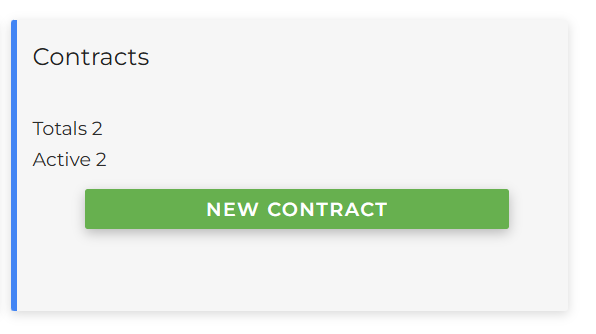
The screen to enter the new contract information will then open:
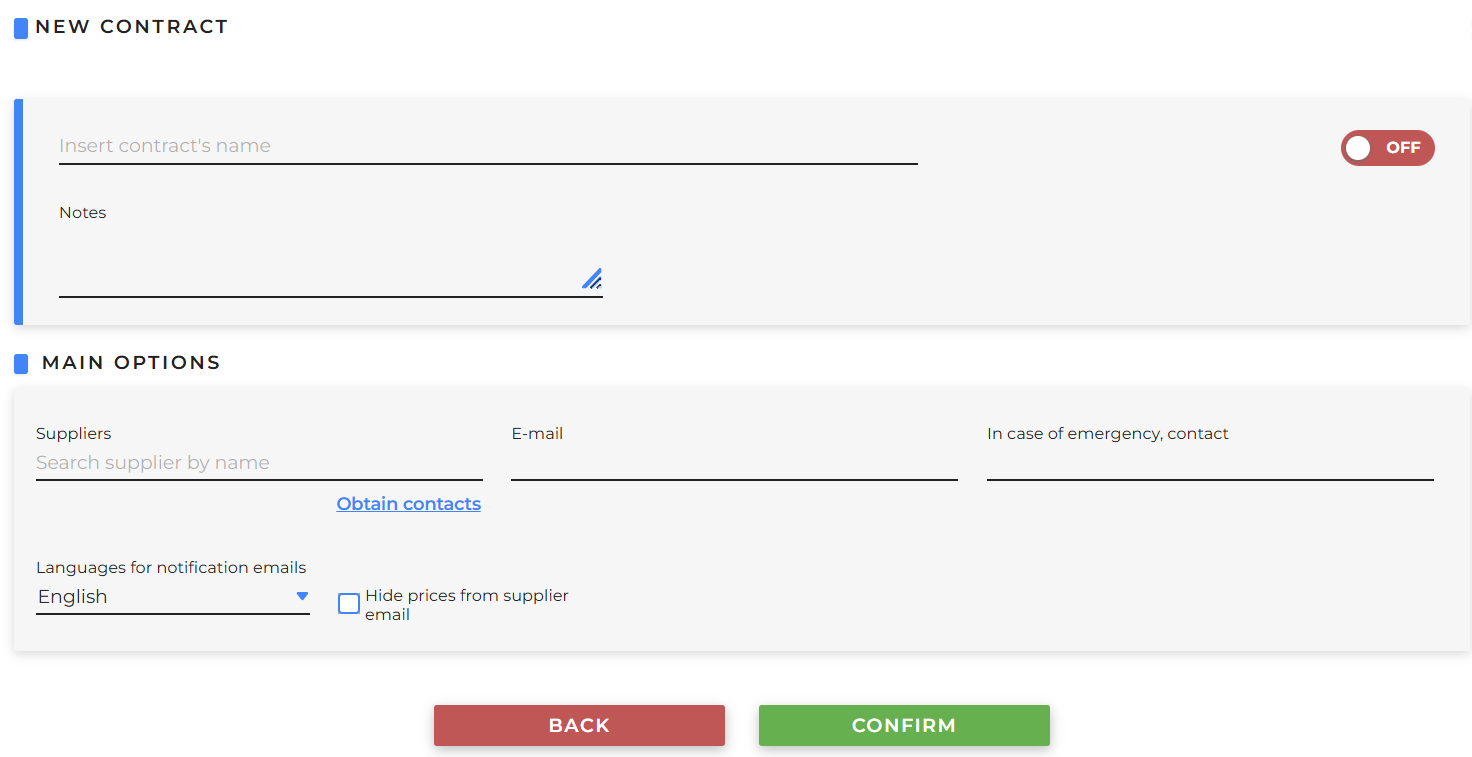
- New contract
- Name: Field to enter a reference to identify the contract
- Notes: optional field to enter internal notes
- ON/OFF: the switch determines whether the contract will be created as Active (ON) or Blocked (OFF)
- Main options
- Suppliers: this is the supplier with whom the contract was signed; by clicking the “Get Contacts” button, the email field will be automatically filled with the address entered in the previously created supplier record
- E-mail: supplier’s email address for receiving bookings
- In case of emergency, contact: optional field
- Languages for notification emails: select the language in which you wish to receive the email
- Hide prices from supplier email: If selected, prices will not appear in the emails
Click Confirm to save the information entered.